
Insight can be configured from the Component Inspector, or through Insight.Configuration.
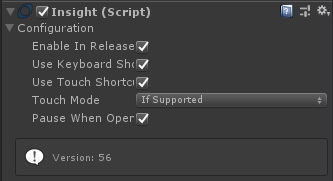
// Enable the insight overlay in non-development builds.
Insight.Configuration.EnableInRelease = false;

// Sets the time scale to 0 when insight is opened.
Insight.Configuration.PauseWhenOpen = true;

// Sets when to enable touch mode.
Insight.Configuration.TouchMode = Configuration.TouchModes.IfSupported;

// Use the keyboard shortcut [CTRL] + [~] to toggle the overlay.
Insight.Configuration.UseKeyboardShortcut = true;

// Use the touch screen to toggle the overlay by holding all four corners at the same time.
Insight.Configuration.UseTouchShortcut = true;
Advanced Configuration
Insight Asset Loading
Insight requires several assets to display correctly. These are typically packaged into the Resources folder within unity, however, there may be cases where a developer willw ant to provide the assets by other means, such as AssetBundles. To facilitate this, Insight.Configuration exposes the LoadAsset function, which can be used to provide custom asset loading functionality.
private AssetBundle bundle;

public void OnEnabled()
{
	this.bundle = AssetBundle.LoadFromFile("my-asset-bundle.assets");
	Insight.Configuration.LoadAsset = this.Load;
}

private Texture2D Load(string path)
{
	return this.bundle.LoadAsset<Texture2D>(path);
}